

“If had a hammer” is the title of a 1949 song by singer-songwriter Pete Seeger with lyrics by Lee Hays. A folk song, played to the rhythm of country rock, born to support an American progressive movement. A protest song in favor of pacifism and against racial discrimination. If had a hammer to date is among the best-selling and translated records in the world (in Italy: "Give me a hammer" by Rita Pavone). Yes… If had a hammer… how many times in front of a computer have we thought…. ”IF I HAD A HAMMER !!!!” Finale doesn't even make you struggle and if necessary it gives you one… let's see how to use it.
Click on the "Hammer" icon (Fig.1).
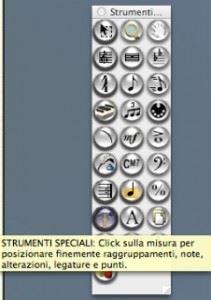
A new palette called “Special Tools Palette” will appear.
With this palette you can edit any element of your score: to shift, change, hide, rotate, dismiss notes, pause, agreements etc… (Fig.2). When selected, each icon of the palette will return a handle in the score, useful for being able to intervene on the position or characteristics of the measure to be modified. But now let's see in detail all these new icons.
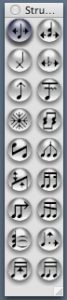

-(to icon)"Notes position" tool; A handle appears on all notes or rests and allows you to reposition them horizontally (including chords) by dragging them in the desired direction.

-(b icon): "Notehead position" tool; Once this instrument is selected, a handle will appear on the head of each note: in this way you can move the single head of a note to reposition it as best as possible (useful for example within very complex chords where it sometimes happens that the note heads are too close together. and unclear reading).

-(c icon) Tool "shape heads of the notes"; by selecting this icon and double clicking on the relevant note, you can change the shape of the note head according to the notation you use.

-(of with) "Accident shift" tool: When you select this instrument, it will be possible to reposition horizontally each accident referring to each note, to each chord.

-(and icon) "Stem length" tool: its function can already be deduced from the name itself. It will be possible with this icon to lengthen or shorten each stem as needed.

-(f icon) "Cediglia" instrument; less used but of great use. This function allows you to turn the single barline to one side or the other by a sixteenth note or even smaller values.

-(g icon) "Stem Direction" tool; here is our snowflake. Very useful! With this tool it will be possible to quickly change the direction of all the stems of the notes (single or grouped).

-(h icon) Instrument "double or divide the stems": useful in polyphony, in the management of choral or instrumental scores where several voices are in a single staff. This icon will allow you to double or divide the stems of the notes (it therefore allows you to assign a note to two voices at the same time or vice versa).

-(the icons) "Inverted stem" tool: this tool turns the stem of the note to the other side.

(the icon) "Custom stem" tool: Used in special cases where traditional stem management is impossible. With this icon you can branch, modify, redesign the stems themselves.

(m icon) "Angle of grouping lines" tool: This tool allows you to change the angle of the bar line that joins several notes (for example a group of four octaves grouped together). Two handles will appear above the note joining barline and by dragging the handles it will be possible to change their inclination.

(no icon) "Break secondary grouping lines" tool: Little used but also very useful. This tool allows you to specify breakpoints for secondary grouping lines (for sixteenth notes or even lower).

(or icon)Grouping line extension tool: Extends a grouping line beyond the last note included in the grouping itself.

(p icon) "Angle of secondary grouping lines" tool: allows you to modify the angle of the grouping lines of sixteenth notes or smaller values.

(q icon) "Tie of value" tool; this function allows you to adjust the position of the slur with respect to the note head. Three handles will appear on the tie itself and it will be possible to modify its shape with them.

(r icon)Value point tool: select this tool if you want to horizontally change the position of the value point.

(Yes with) "Width of grouping lines" tool: adjusts the thickness of the lines of a grouping. Also in this case the handles will come to your aid to create the desired thickness.

(you with) Stems in groupings tool: Choose this icon if you want to change the length and connection of the stems that are under a grouping.
You are now ready to deliver the blow
Good music. See you next time
Beppe Bornaghi